Hop Clipper
Press F8 to save the last moments of your screen.
Hop Clipper records your screen in the background and keeps only the last minute. Pressing F8 saves the end of that as a clip. Saving is instant, because nothing is encoded again.
 Hop Clipper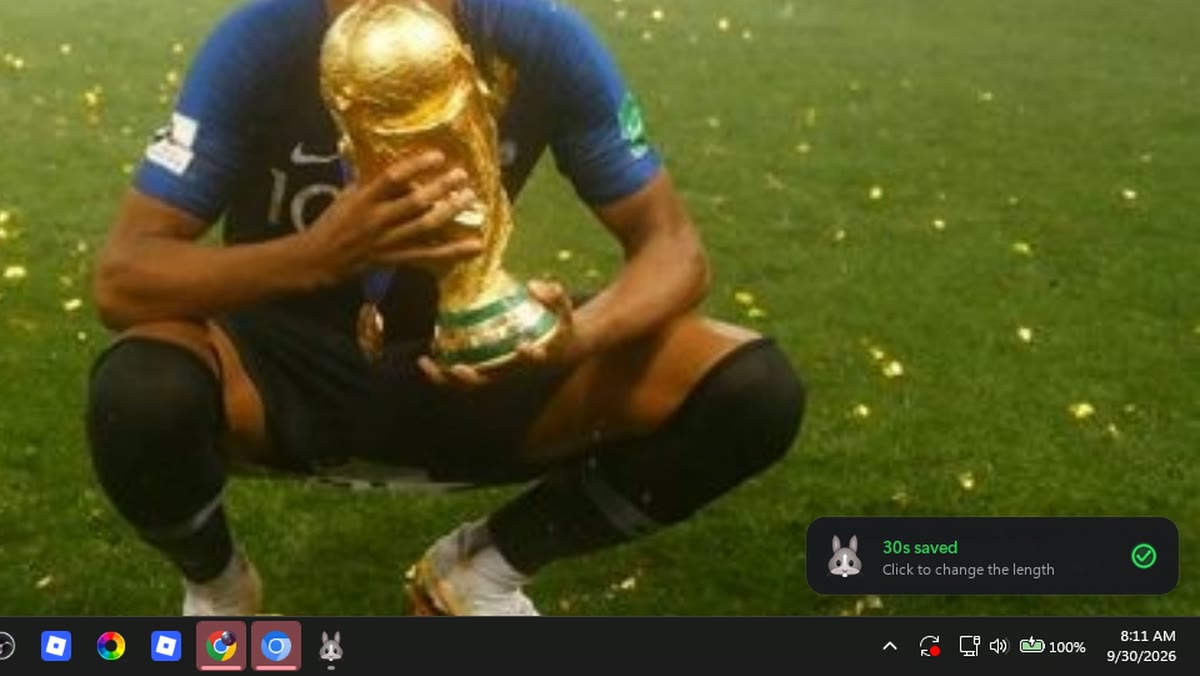
Shortcuts
| Keys | Action |
|---|---|
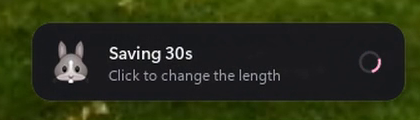
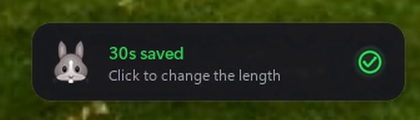
F8 | Save the last 15 seconds, 30 seconds or minute |
Ctrl + Shift + F8 | Quit Hop Clipper |
Important
Hop Clipper only records while it is running. If you quit it,
F8does nothing until you start it again.Leave Start Hop Clipper with Windows on in the installer if you want clips to always be ready.
What it records
- The whole screen at up to 1080p 120 fps, fullscreen games included.
- System audio.
- The mouse cursor, unless you turn it off.
It is light on the GPU, so games keep their frame rate.
Warning
120 fps needs a strong PC and a screen of 120 Hz or more. On a PC with 4 CPU threads or fewer, or less than 8 GB of RAM, Hop Clipper starts at 30 fps instead of 60.
Full recordings
For something longer than a clip, use the record button on Hop Island, or start and stop a recording from the tray menu.
Tray menu
Right-click the bunny in the system tray to save a clip, start or stop a recording, open the clips folder, check for updates, or quit.
Settings
Hop Clipper's settings are in Hop Island's settings app. These are the defaults, and Settings and Shortcuts explains each one:
| Setting | Default | Options |
|---|---|---|
| Clip length | 30 seconds | 15 seconds, 30 seconds, 1 minute |
| Frame rate | 60 fps | 30, 60, 120 fps |
| Quality | High | Best, High, Small |
| Clips folder | Videos\Hop Clips | Any folder |
| Watermark | On | On, Off |
| Save sound | On | On, Off |
| Cursor in clips | On | On, Off |
| Island in clips | On | On, Off |
| Saved pop-up in clips | Off | On, Off |
The watermark is drawn while recording, which is what keeps saving instant. Turning it off applies to what is recorded from then on.